Badges
I bought my significant other an iPad Air 11-inch (M3) for Christmas, for a chance for her to learn some digital art. But to be fair I think I have played with it almost as much as she has. We have been trying a few different styles and created a few images when I remembered that she has a badge machine, and we have a nice printer so we experimented.
iPad / Procreate
I really can’t complain about the iPad drawing experience. The Apple Pencil Pro is incredibly responsive, and Procreate was very easy to pick up and get started with. I do have a few niggles with Procreate: layer handling, lacking non-destructive filters, and the copy paste process between canvases is insane. An example of this is that when you copy layers between canvases, if you’re not careful they get pasted in reverse order. Procreate does however (with a bit of input filtering) allow even me to draw smooth lines.
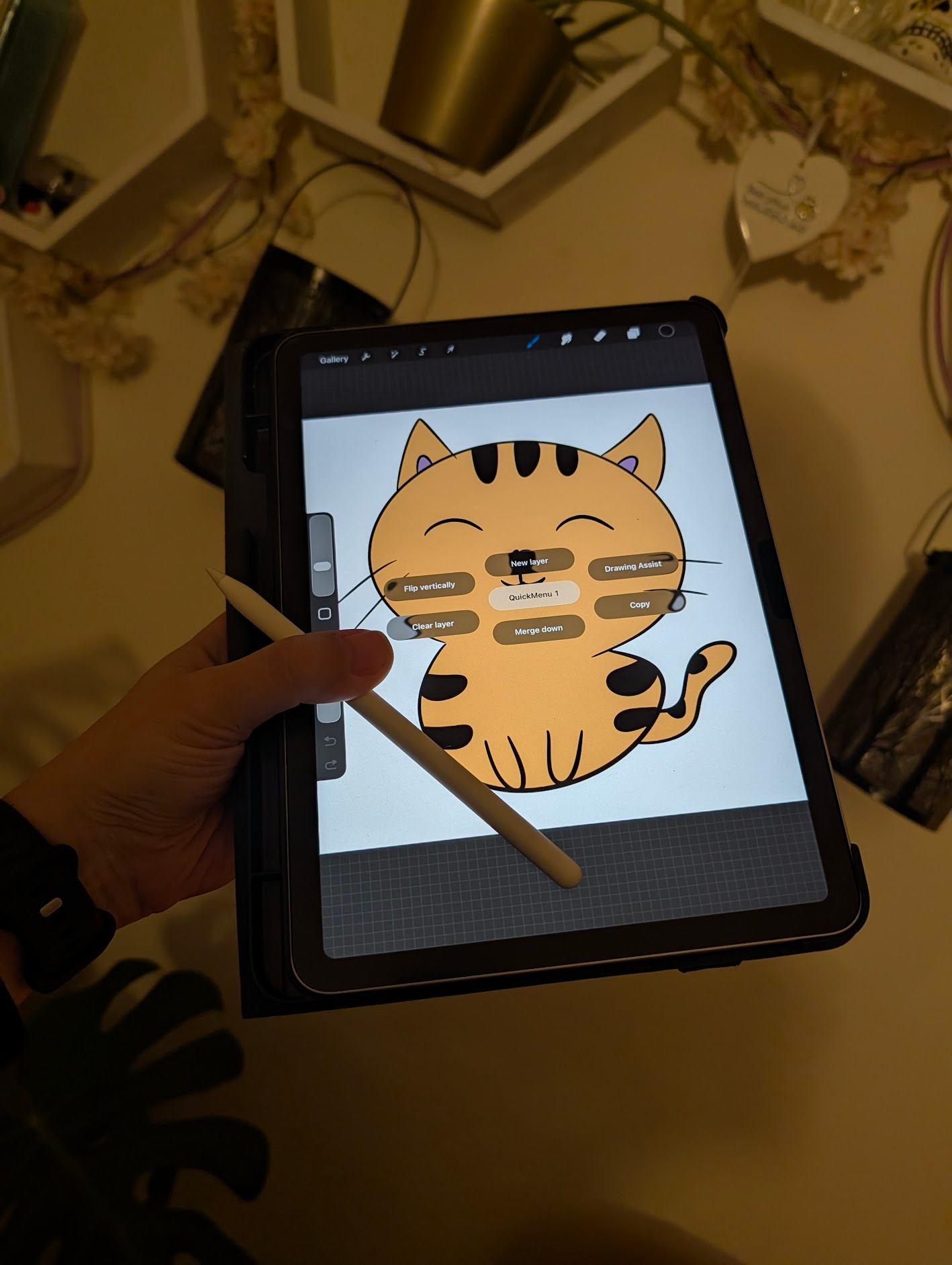
The iPad Air and Pencil Pro setup.
We have tried a few different styles, including some posterized images, some logo work, and some simple cartoon cats (which you will see later).
I picked up a textured “paperfeel” screen protector for the iPad. I didn’t notice much difference beyond the dust I trapped under it, but my partner says the pencil feel is much nicer.
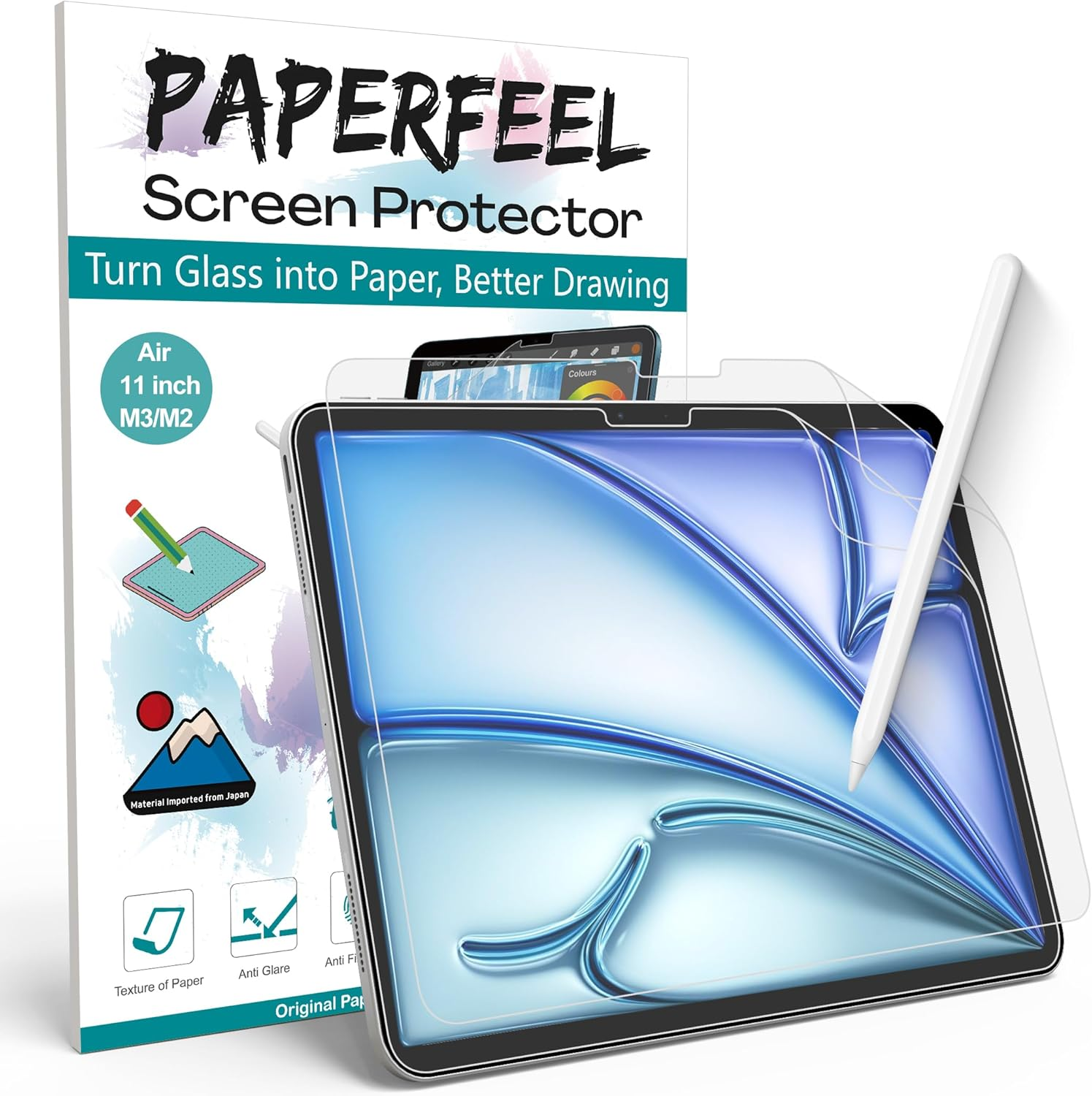
PAPERFEEL screen protector for a nicer pencil texture.
Printing
So we have some drawings, but we need to be able to print these out. Handily, last year at some point I picked up a Canon Selphy CP1300 printer, a cute little dye-sublimation printer. It prints lovely high gloss high quality prints on 4x6-inch postcard paper (102×152mm)1, which has caused us issues when trying to frame the pictures it prints, but for this project is not an issue.
Badge Machine
So my other half has had a “broken” badge machine in her craft room since we moved here… over five years ago. We decided to give it a go, and if we couldn’t get it working we could just throw it out instead of it taking up space. We grabbed a 1⅛ inch scalloped punch (which was a bit too small) and threw some blanks into the BlankBadge machine and it worked. A bit of scrambling to find a better fitting punch2, and we were away to the races.
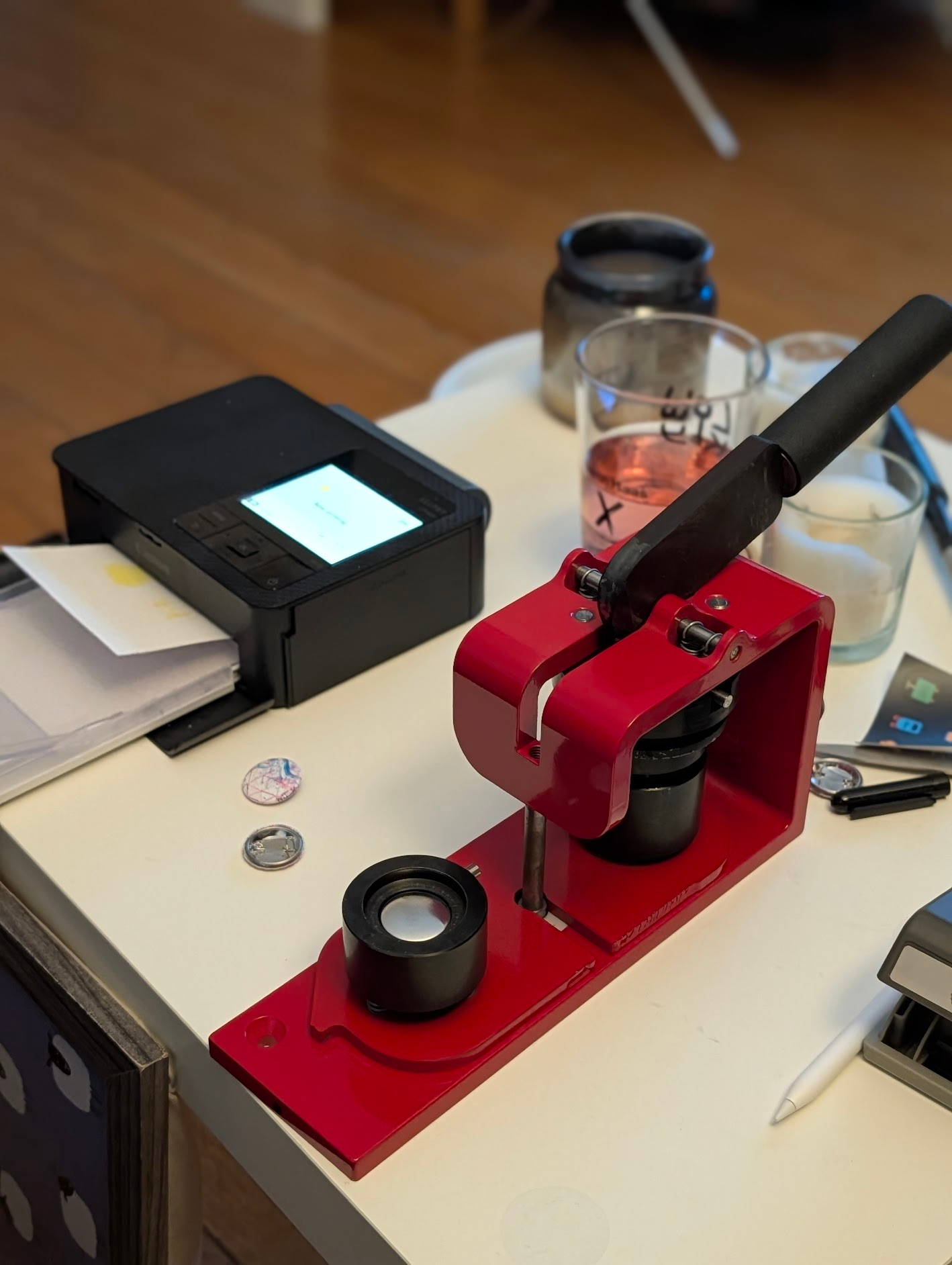
The BlankBadge press set up and ready to punch.
It took a bit of trial and error getting the images to print the right size. The content needs to be just under one inch to fit on the front of the badge, but needs about 1½ inches of total space so the design can be punched out.
Results
So we still need to experiment a bit more, including in getting the print outs the right size, punching them out neatly, and maybe adding simple backgrounds to add variety beyond plain white, but I think for an evening of play the badges have come out ok!
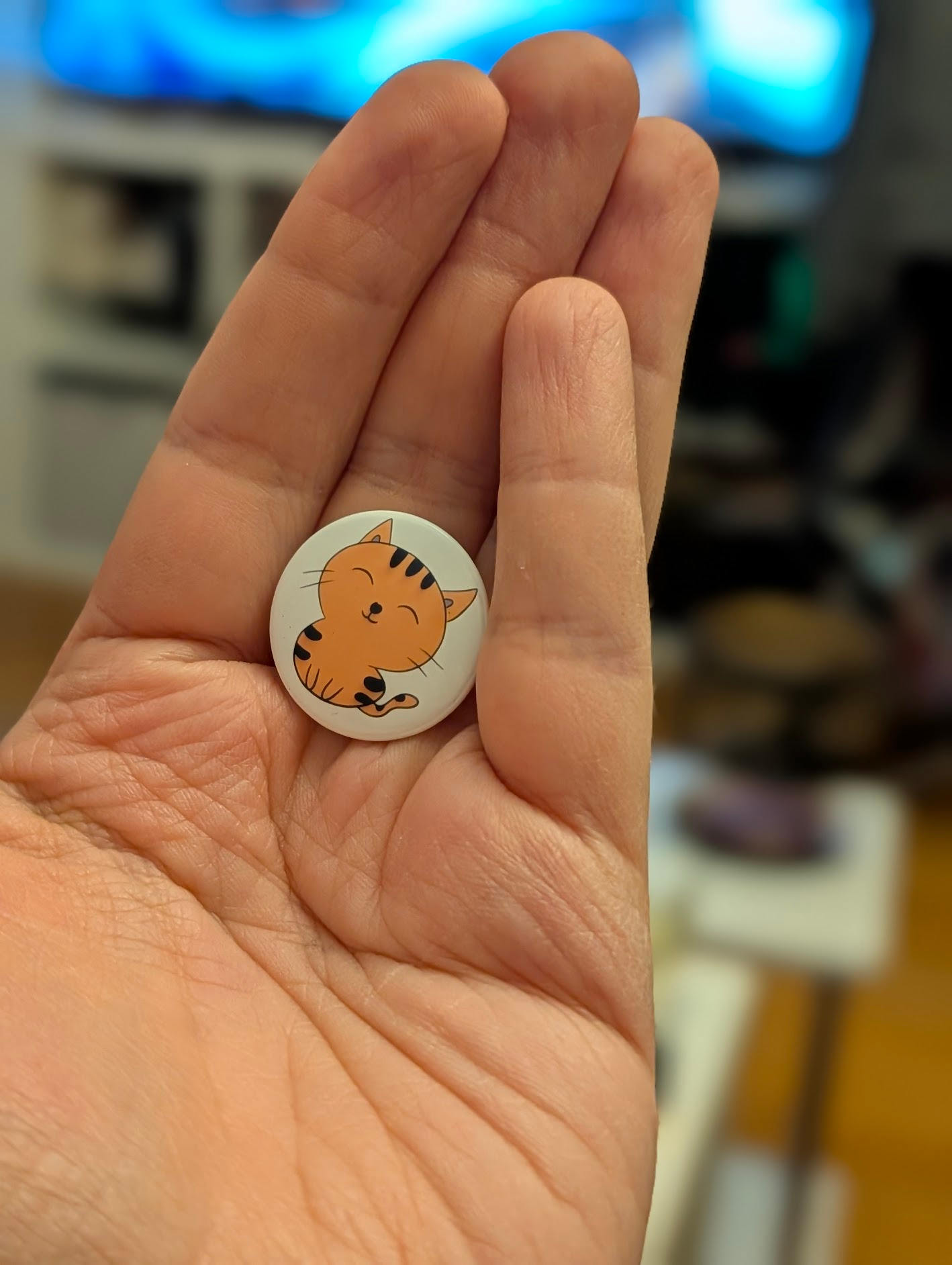
The finished badges ready to give away.
-
4x6 inches is 102x152mm ↩︎
-
A Stampin’ Up 1⅜ inch scalloped punch worked best. ↩︎