
DevContainers on Windows
Most of my development happens in Linux, but my desktop at home runs Windows1. As I have a number of different projects on the go, and instead of polluting my host with lots of dependencies, I set the projects up with Dev Containers, so VS Code runs the whole toolchain inside a Linux container and Windows only has to provide Docker.
And it works well, but there have been a few gotchas along the way, which I wish someone had told me about.
What’s a Dev Container?
A Dev Container is a Docker container set up for working on one project. A .devcontainer/devcontainer.json file in the repository says which image to start from, which tools to add (as ready-made features), and which editor extensions and settings to use. VS Code builds the container, mounts the project into it, and then runs its terminal, extensions and debugger inside it, so it feels like working locally.
Each project gets its own toolchain without anything leaking onto the host, and rebuilding gets you the same environment every time. The specification is open2, and VS Code’s documentation covers the details far better than I could here.
The Windows Bit
The problems all come from where the files actually live. I’d cloned the repository onto a normal Windows drive, and the container sees that folder through WSL, which shares it into Linux over 9p, a network file system protocol. It looks like a normal folder, but it doesn’t quite behave like one.
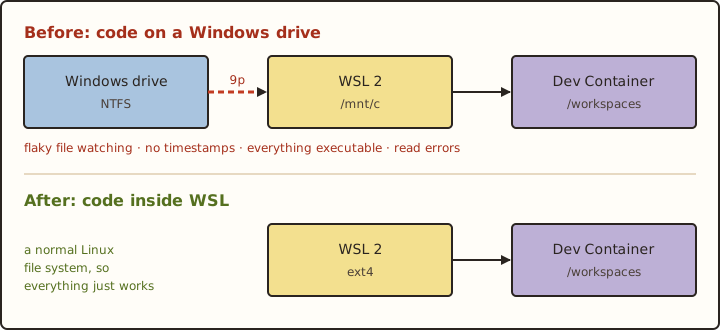
Where the files live, before and after
File Watching
Anything that watches files for changes uses inotify, and across the 9p mount it’s flaky. It works for a while, long enough to convince you everything is fine, and then it quietly stops. Edit a post, and nothing happens. Restart the dev server and it’s back, until it isn’t again.
Hugo’s dev server is an example of where I noticed this, so the workaround was to stop relying on inotify and tell Hugo to poll for changes instead:
1hugo serve -D -F --noTimes --poll 700ms --bind 0.0.0.0Polling a site with a few gigabytes of photos isn’t free, but it’s fine. Most other tools with a file watcher have a similar polling option somewhere, if you can find it.
Timestamps
Another niggle is how the mount handled timestamps. This showed up in Hugo because it copies static files into public/ and tries to set their modification times to match, which fails on the mount:
1chtimes ... operation not permitted--noTimes turns that off, so it’s now on every Hugo command I run.
“Cannot Allocate Memory”
This one took a while to work out. Every so often a build would fail reading one of the larger photos:
1read ...: cannot allocate memoryThe container had plenty of memory free. It’s actually a read error from the 9p mount, and rerunning the build almost always works. --renderToMemory, which you’d think would help, made it worse. The really annoying version is when the running dev server hits it on a rebuild, and leaves the home page half built while every other page looks fine.
Everything Is Executable
Files on a Windows drive don’t have Unix permissions, so through the mount everything shows up as executable. Git notices the moment the files move anywhere that does keep permissions, and suddenly scripts that were never committed as executable show up as modified3.
Moving Into WSL
The proper fix, and the one Microsoft recommends, is to keep the files inside the Linux side of things rather than on a Windows drive. Either clone the repository into the WSL file system and open the container from there, or use “Clone Repository in Container Volume” and let VS Code keep everything in a Docker volume.
So that’s what I’ve done. The repository now sits on an ext4 file system, file watching works, timestamps work, and builds are noticeably quicker.
The downside is that the files are now a bit hidden from Windows. They’re reachable through \\wsl$\, but dragging a folder of photos off my camera’s SD card into a gallery is no longer quite as simple as it was.
Other DevContainer Stuff
Claude in Every Container
One side effect of putting every project in its own container is that anything I want everywhere has to be installed everywhere. For me that’s mostly Claude Code, which needs both the CLI inside the container and the VS Code extension.
For a single project, it goes in devcontainer.json. The CLI is a feature, the extension goes under customizations.vscode.extensions, and I keep its config in a named volume so I don’t have to log in again every time the container is rebuilt:
 1"features": {
 2  "ghcr.io/anthropics/devcontainer-features/claude-code:1": {}
 3},
 4"mounts": [
 5  "source=claude-code-config-${devcontainerId},target=/home/vscode/.claude,type=volume"
 6],
 7"containerEnv": {
 8  "CLAUDE_CONFIG_DIR": "/home/vscode/.claude"
 9},
10"customizations": {
11  "vscode": {
12    "extensions": ["anthropic.claude-code"]
13  }
14}
${devcontainerId} gives each project its own volume, so one project’s settings and history don’t leak into another’s4.
Copying that into every repository gets old quickly, though, and not every project I open is mine. The Dev Containers extension has user settings for exactly this: dev.containers.defaultExtensions installs extensions in every container you open, and dev.containers.defaultFeatures adds features to every container you build, without touching the project’s own config.
1"dev.containers.defaultExtensions": ["anthropic.claude-code"],
2"dev.containers.defaultFeatures": {
3  "ghcr.io/anthropics/devcontainer-features/claude-code:1": {}
4}
Those go in my VS Code settings.json on Windows, and now every container comes with Claude whether the project asked for it or not5.
Final Thoughts
Dev Containers on Windows are great, as long as you don’t put the code on Windows. If I were starting again, I’d clone straight into WSL and skip the week of confusion and workarounds.
-
It’s still easier to play games on Windows, though it’s been a couple of years since I tried Proton. ↩︎
-
But from experience they do not work between IDEs such as between VS Code and Antigravity. ↩︎
-
git config core.fileMode falsehides this, but I’d rather fix the modes than tell Git to stop looking. ↩︎ -
The flip side is logging in once per project. A fixed volume name, without the
${devcontainerId}, would share one login between them all. ↩︎ -
The catch is that these settings don’t add the config volume, so containers that only get Claude this way forget the login on every rebuild and ask me to log in again. ↩︎